
Safety Instructions
Charging Safety
Charging Time: This product contains a built-in 200mAh lithium battery. When charging for the first time or after the battery has been fully depleted, it takes approximately 30 minutes to reach a full charge.
Overcharging Protection: Please disconnect the charger from the power source once the battery is fully charged. Although the product is typically equipped with overcharge protection circuitry, it is recommended not to leave it connected to the charger for extended periods to prolong battery lifespan and ensure safety.
Battery Safety & Warnings
Strictly Prohibit Disassembly: This product contains a built-in, non-removable lithium battery. Do not attempt to disassemble, modify, or replace the battery. Any unauthorized disassembly may cause leakage, overheating, fire, or explosion, and will void the product warranty.
Contains Small Battery: This product contains a lithium battery which may pose safety hazards if disposed of improperly. Please follow local laws and regulations by disposing of the product at a designated electronic waste recycling facility. Do not dispose of it in fire or with regular household waste.
Product Overview
Quick Start Guide
Unboxing Checklist
Before using the product, please ensure the package includes the following items:
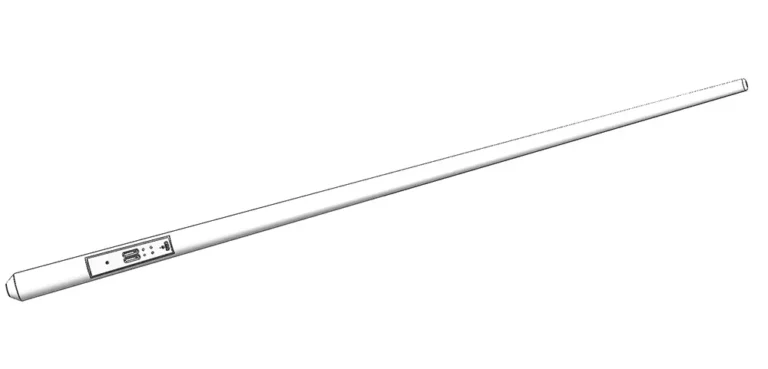
Smart Billiard Cue ×1
Charging the Device
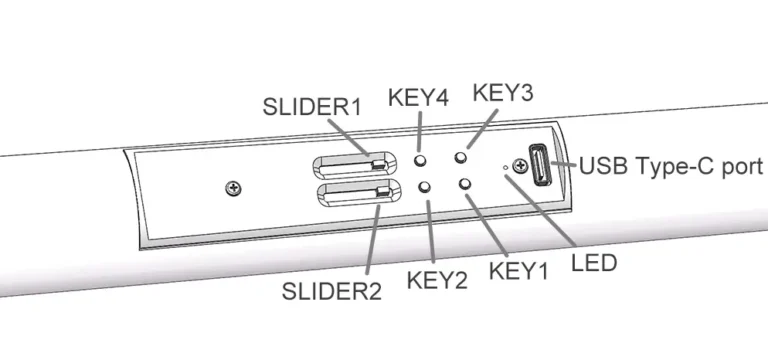
This device features a USB-C charging port.
Please use a type-C cable (or any standard USB-C charger) to connect the device to a power source.
Note: It takes approximately 30 minutes to fully charge the device (refer to the Safety Instructions for details).
Power On/Off Operations
Power On:
Long press the KEY4 button. The blue indicator light will begin to flash. Continue holding the button until the blue light stops flashing and stays solid, then release the button. The device is now powered on and ready.
Power Off:
Press and hold both the KEY1 and KEY3 buttons simultaneously. Release both buttons once the device turns off.
Connecting to Your Mobile Device
Ensure your smartphone’s Bluetooth function is enabled.
Open our App “PoolPals” mobile game application.
Once the app is open, it will automatically scan for and connect to the Smart Billiard Cue.
Wait for the on-screen confirmation that the connection is successful before starting your game.
Troubleshooting (Common Issues):
For first-time use, make sure the device is fully charged before pairing.
If the automatic connection fails, try restarting the app .
Basic Operations
Main Menu Navigation
On the app’s main menu interface, use KEY1 and KEY3 as the Previous/Next selection buttons.
Press KEY4 to confirm your selection.
In-Game Controls
After entering the game interface, the gameplay is divided into 3 stages. The button functions change according to the current stage:
Stage 1: Aiming Direction & Camera Perspective
Adjusting Cue Direction:
Press KEY1 or KEY3 once to rotate the cue direction left or right by a fixed angle.
For free adjustment, hold and keep pressing KEY2 while physically rotating the smart billiard cue to any desired angle.
Adjusting Camera Perspective:
Slide SLIDER1 to adjust the camera’s pitch (up/down angle).
Slide SLIDER2 to adjust the camera’s zoom (distance).
Proceed to Next Stage: Press KEY4 to enter Stage 2.
Stage 2: Cue Ball Contact Point Adjustment
Use KEY1, KEY2, and KEY3 to fine-tune the desired contact point on the cue ball.
Proceed to Next Stage: Press KEY4 to enter Stage 3.
Stage 3: Power Adjustment & Shot Execution
Press KEY1 to decrease shot power.
Press KEY2 to increase shot power.
Execute the Shot: Quickly push (thrust) the billiard cue forward. The shot will be triggered upon sensing the motion.
Return to Stage 1:
Press KEY4 to return to Stage 1 (Aiming Direction) for the next turn.
Warranty Information
Warranty Period: 1 year from the date of purchase
Coverage: This warranty covers manufacturing defects in materials and workmanship under normal use.
Exclusions: The warranty does not cover damage caused by accident, misuse, unauthorized disassembly, modification, or normal wear and tear.
Claims: To file a warranty claim, please contact our customer support with your proof of purchase and model number (XSPIN2601).
Customer Support
Contact: support@xspinpool.com